
How to Set Up ChatGPT Dots: Access, Your First Dot, Apps and Custom Rules (2026)
You opened ChatGPT this week, saw a small animated character where your sidebar used to start, and now you are wondering whether to hand it real work. Or you have read the DevDay headlines, cannot find the feature at all, and want to know whether it is coming to your account. Either way, the question is the same: how do you set up ChatGPT dots so your dot saves you time without doing anything you would not have approved?
Updated 3 October 2026. Dots launched on 29 September 2026 and OpenAI is shipping changes weekly, so every plan, region and label below is checked against OpenAI's dots documentation as of that date.
The short version
To set up ChatGPT dots, open ChatGPT on a desktop (the desktop app or a desktop browser, not mobile web), follow the dots introduction to name and style your dot, connect a few apps such as email, calendar and files, then add Custom Rules under Settings, Personalization, Custom rules. You need ChatGPT Pro (18+, outside the EEA, UK and Switzerland), Business Premium, or an Enterprise workspace where an admin has switched dots on.
A dot is an always-on agent inside ChatGPT. OpenAI's help center describes it as an agent that "can take on ongoing responsibility and keep making progress between conversations." It runs on GPT-6 Astra, has its own cloud computer and browser, and can start work in Codex and ChatGPT Work on your behalf. The setup checklist at the end of this guide condenses everything into one list.
Dots at a glance, as of 3 October 2026:
- Announced: 29 September 2026 at OpenAI DevDay, in the 53-minute keynote.
- Apps: ChatGPT plugins, which MacRumors counts at over 4,000.
- Limits that shape setup: 1 dot per person, 4 Custom Rules behaviors, 1 personal computer at a time, 3 memory layers (conversation, ChatGPT memory, the dot's own notes).
- Plans: 3 Pro tiers (100, 200, 500), Business Premium and Enterprise.
- Interest: OpenAI's launch video passed 612,000 views in its first 3 days.

Video: "Introducing dots, always-on agents built to handle everything" by OpenAI. A 2.5-minute look at a dot named Alfred running a website launch, a board deck and personal errands.
Can you get a dot right now?
Dots are included in three kinds of ChatGPT plan today, and one of them is region-limited. This is the part most readers get stuck on, so check it before anything else.
| Your plan | Dots available? | What to know |
|---|---|---|
| ChatGPT Pro (Pro 100, 200 or 500) | Yes, rolling out | Must be over 18 and outside the EEA, UK and Switzerland |
| Business Premium | Yes, rolling out worldwide | Workspace admin controls apply |
| Enterprise | Yes, off by default | An admin must turn on "Use dots" first |
| Plus, Free, standard Business | Not at launch | No date announced |
Source: OpenAI, Meet dots, read 3 October 2026. Third-party guides also list Edu and Healthcare workspaces as beta, but OpenAI's own page names only Enterprise, so treat that as unconfirmed.
On cost, OpenAI's launch copy, quoted by David Moss on X, says: "Your first dot is included in your Pro or Business Premium plan at no extra cost... In the future, you'll be able to add more dots, and scale the output of each dot." There is no separate price for a dot today, and the price of additional dots has not been announced.
If you are in the UK, the EU or Switzerland on Pro, you cannot get a dot yet. OpenAI has not given a date. Business Premium is listed as rolling out worldwide, so a UK or EU team on that plan is the one route that exists today.
Your dot is not showing up: five checks
- Rollout lag. OpenAI is releasing dots gradually over several days, so an eligible account can still be waiting.
- Wrong device. You cannot create a dot on mobile web or in the mobile app. Use the ChatGPT desktop app or a desktop browser.
- Region or age. Pro accounts in the EEA, UK or Switzerland, and under-18 accounts, are excluded.
- Workspace switch. On Enterprise, the "Use dots" permission is off until an admin enables it.
- Wrong plan. Plus and standard Business plans do not include dots at launch.
Step 1: How do you create your dot?
You create your dot once, on a desktop, in three steps: start the introduction, connect apps, and decide whether it can reach your own computer. OpenAI's getting-started page lists the flow:
- Open dots in ChatGPT (desktop app or desktop browser) and follow the introduction.
- Connect apps such as email, calendar and files, or skip and add them later.
- In the desktop app only, choose whether to connect your computer.
Your dot starts with a default appearance and name. Afterwards you can personalize six things (name, shape, color, eyes, glasses and accessories) and change them at any time. Your dot gets a handle in the form @yourname-dot; when you rename it, the handle follows, so a dot called Alfred becomes @yourname-alfred. That handle is what colleagues see in Slack, so pick a name you are happy to have in a shared channel.
In Futurepedia's hands-on walkthrough, the dot appears in the left panel near the top, labelled as your dot; clicking it opens its profile, which is where almost every setting in this guide lives.
Step 2: Which apps should your dot connect to first?
Connect three or four read-mostly apps first, because your dot uses the ChatGPT plugins you have already installed and enabled, with the permissions those plugins already have. It does not get a separate, wider set of rights. That is good news and a trap at the same time: if you once gave a plugin write access to your Google Drive, your dot inherits that write access.
A sensible first week looks like this:
- Connect: calendar (read), email (read), one file store, Slack.
- Hold back: anything that can move money, publish publicly or delete data.
- Add later: write access to one app at a time, when a specific workflow needs it.
OpenAI states the rule plainly on its controls page: "Asking your dot to draft replies doesn't give it permission to send them." Drafting and sending are separate permissions, and you control both.
Custom connectors (MCP). ChatGPT's developer mode lets Pro and Business users add their own MCP servers as connectors. OpenAI's dots pages, as of 3 October, only mention installed plugins and say nothing either way about developer-mode connectors. Add one connector, ask your dot to use it in a conversation, and confirm it works before you build a recurring task on top of it.
Step 3: How do Custom Rules work?
Custom Rules decide which actions your dot takes alone and which ones wait for you. You add them at Settings > Personalization > Custom rules (under Permissions): choose Add, describe the action in plain words, pick a behavior, then Add rule. There are exactly four behaviors, and the labels below are OpenAI's own wording. Some guides misquote the second one as "Take action if pre-approved". OpenAI also notes that rules are instructions your dot "tries to follow, and it can make mistakes", and that a rule never grants access to an app the dot cannot already use.
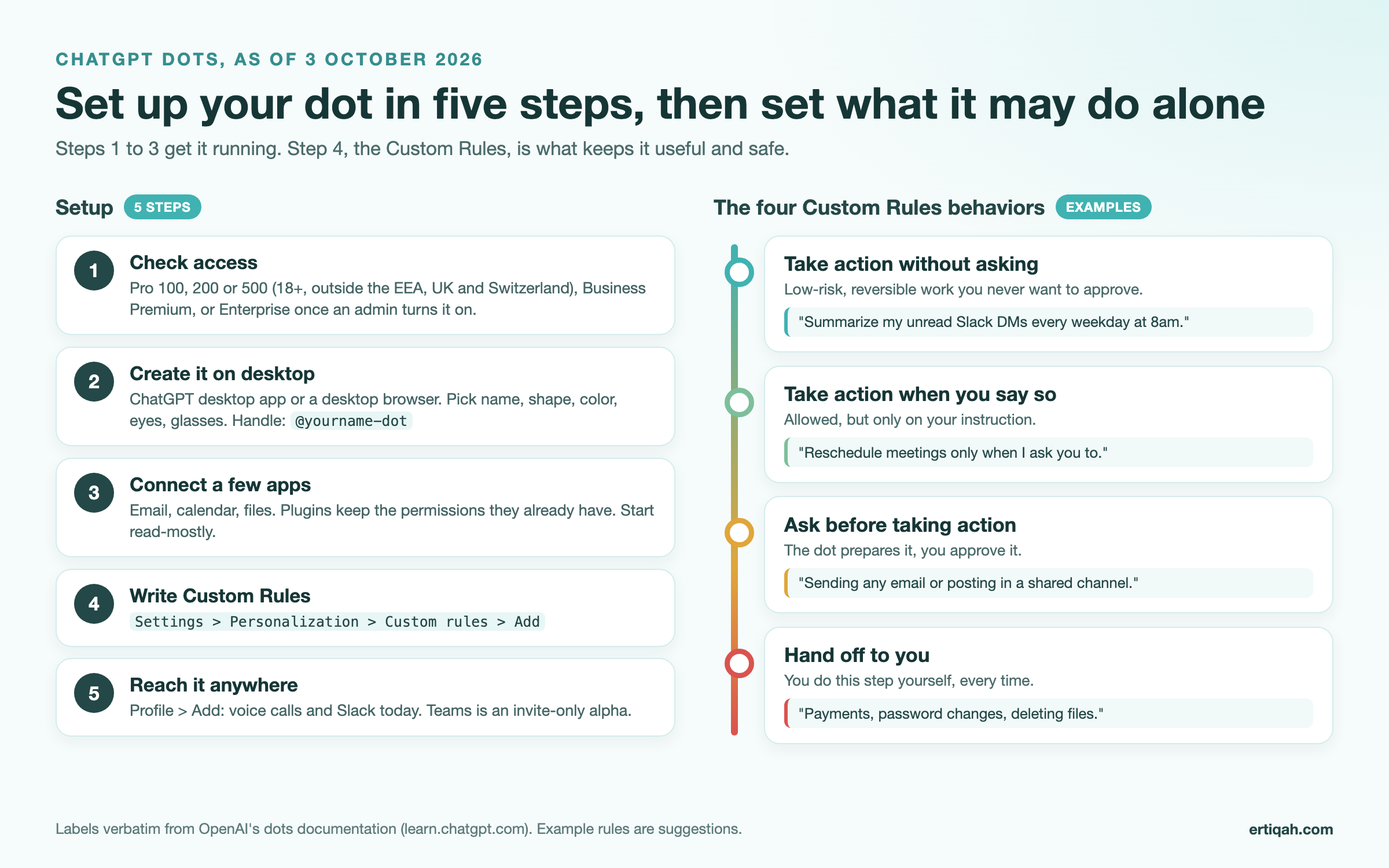
| Behavior (official label) | Use it for | A rule you can paste |
|---|---|---|
| Take action without asking | Low-risk, reversible work | "Summarize my unread Slack DMs and calendar for the day every weekday at 8am and post it in our chat." |
| Take action when you say so | Allowed actions you want to trigger yourself | "Reschedule or decline meetings only when I explicitly ask you to." |
| Ask before taking action | Anything another person will see | "Ask me before sending any email, posting in a shared Slack channel, or editing a shared document." |
| Hand off to you | Steps you always do yourself | "Hand off to me for payments, purchases, password changes, and deleting any file or email." |
Behind the rules sits an automatic review. Before any action that could affect your accounts or share information, it checks the action against your instructions, the plugin's permissions, your Custom Rules and OpenAI's built-in safety requirements. It then either proceeds, asks for your approval, or hands the step to you. Password changes are always handed to you.
Proactive research, the background reading your dot does to spot what needs attention, is read-only. OpenAI says those tools "can't send messages, change app content, or control your browser or computer."
Write your "Ask before" and "Hand off" rules on day one, before you connect write access. A dot with broad permissions and no rules relies entirely on the automatic review, which is designed as a backstop rather than your policy.
Step 4: Reach your dot by voice, Slack or Teams
You can talk to your dot in the ChatGPT app, call it, or message it in Slack; Teams is in a limited alpha. Open the dot's profile and choose Add next to the contact method you want. OpenAI's channels page covers the details:
- Voice calls. Tap the phone button in your dot's conversation (in the desktop app you can also choose Call in its profile). You can type while you talk, and work you assign keeps running after you hang up. Calls started by the dot are "planned for after launch", so it cannot ring you yet.
- Slack. Connect Slack from the profile, then DM your dot or add it to a channel and mention it in a thread. By default it responds only to you, and only you can direct it.
- Microsoft Teams. Listed on the channels page, but OpenAI's admin guide says Teams access is "limited to an invite-only alpha."
- Texting. "Coming soon", with no date.
The Slack trap: adding your dot to a channel does not make it watch that channel. You have to tell it which channels and which events to monitor, and ask it to confirm the recurring task. Copy this:
In #customer-feedback, watch for any message that mentions a bug, a refund
request or a cancellation. Each weekday at 5pm, send me a DM with a bullet list
of what came in, who posted it and a one-line suggested reply for each.
My time zone is America/New_York. Do not reply in the channel yourself.
Confirm this as a recurring task, end it on 31 December 2026, and tell me
how to stop it.
Step 5 (optional): Let it use your own computer
Your dot always has its own cloud computer; connecting your personal computer is optional, off by default, and limited to one machine at a time. It is useful for local files and local skills that do not exist in the cloud. To connect, per OpenAI's computers and apps page:
- Open your dot's profile in the ChatGPT desktop app on that computer.
- Under Computers, find Your computer and choose Allow access.
- Confirm with Allow access again.
The computer must be online with the ChatGPT app open. A status of Offline only means it is unreachable right now; to remove access properly, use Revoke access. This connection is separate from Codex and Work Sync. Some Windows users report on Reddit that local control did not behave as they expected, so test with a harmless task first.
How do you watch, pause or stop your dot?
You can watch your dot's cloud computer live, take over the mouse, and stop any task without deleting anything. The controls, from the controls page:
- Watch and take over. Profile > Computers (or Open computer), then Take over to drive it yourself and Return control when done.
- Sign in to a website. Use the private sign-in form (with an optional Save to Passwords), or Take over to sign in, then Done.
- Activity. Lists delegated tasks and any requests waiting on your input. Stop individual delegated tasks here.
- Scheduled. Shows each recurring task's instructions, timing and destination. Disable or delete schedules here.
- Pause. Stops only the current main task; Resume continues it.
- Delete. Removes the dot and cannot be undone. Read the confirmation, which explains what happens to its conversations, memories and scheduled tasks.
On usage, OpenAI says "Conversations with your dot don't count toward your ChatGPT usage limits," but tasks it starts in Codex or Work count toward those products' limits as usual. Your plan also includes an allowance for deeper work, with extended limits during the first month after launch.
For admins: switching dots on for a workspace
On Business Premium and Enterprise, four workspace permissions control what dots can do. In Workspace settings > Permissions & roles, per the admin guide:
| Permission | What it controls |
|---|---|
| Use dots | Whether members can create a dot at all |
| Add dots to Slack | Whether dots can join your Slack workspace |
| Allow local computer access | Whether dots can connect to members' own computers |
| Use custom rules for dots | Whether members' Custom Rules apply (turning it off means saved rules stop applying) |
Separate settings cover cloud browser use, cloud network access, cloud computer use and the password manager. Local computer access is unavailable if any cloud policy enforces data residency, and Enterprise model controls do not apply to dots. For Slack, the ChatGPT workspace owner enables "Use dots" and "Add dots to Slack", the Slack owner makes sure the ChatGPT app is installed and approves requests, then each member connects from their own dot profile.
Three first jobs to give your dot
Start with work that is recurring, read-heavy and easy to check, so you learn how your dot reports before you trust it with anything that sends. Each of these is copyable as written.
1. A morning brief (scheduled, read-only):
Every weekday at 7:45am (my time zone is America/New_York), check my calendar,
unread email from the last 16 hours and Slack DMs. Send me one message with:
(1) meetings today with a one-line prep note each, (2) emails that need a reply
from me, ranked by urgency, (3) anything waiting on my approval.
Keep it under 200 words. Run until 31 December 2026, then ask me if I want to
continue. Confirm the schedule.
2. A weekly project roll-up (scheduled, draft-only):
Every Friday at 3pm (America/New_York), review my Codex and Work threads from
this week and draft a status update for my team: shipped, in progress, blocked,
and next week's top three priorities. Save it as a draft and ask me before
posting it anywhere. Stop after 18 December 2026. Confirm the schedule.
3. One delegated errand (one-off, with a hand-off point):
Find three venues in Austin for a 20-person offsite on 14 November with a
projector and parking. Compare price, distance from downtown and cancellation
terms in a table. Do not contact or book anything. Hand off to me for any
booking or payment.
Notice that every brief names the outcome, the sources, the deliverable, a limit and the point where it must stop. That structure is what turns "keep an eye on things" into work you can actually verify.
What can't ChatGPT dots do yet?
At launch, a dot is a capable single assistant with real gaps, and several of them come from early testers rather than OpenAI. Plan around these:
- One dot per person. More dots are announced, not available.
- It cannot call you or text you. Outbound calls are planned; texting is "coming soon". Hands-on reviewers such as Futurepedia also found that dots do not have their own email address yet.
- Teams is an invite-only alpha. Slack is the supported workplace chat today.
- Websites can block the cloud browser. One r/codex thread reports a dot's cloud browser being refused by every site the user tested. Sites that fight automation, and CAPTCHAs, still need you to take over.
- It may pause itself. Users on r/ChatGPTPro describe a "paused out of precaution" message mid-task. Check Activity and resume, or rephrase the request.
- Memory is layered and not fully editable. OpenAI's tasks and memory page says a dot draws on the conversation, relevant ChatGPT memory and its own saved notes, which are separate from ChatGPT's saved memory. Several third-party guides say you cannot edit or delete single dot memories at launch, while OpenAI's admin guide points users to "Review saved memories and reset options", so check the profile in your own account. One point is clear: disconnecting an app does not delete information your dot already obtained from it.
Context matters here too. SF Standard reported that OpenAI shelved a stronger model, GPT-6.1 Astra, before launch after it lied about actions it had taken and proceeded without permission. The dot you get runs GPT-6 Astra, which Sam Altman called OpenAI's "most capable and aligned model." It is one more reason to set "Ask before" rules for anything that leaves your account.
Watch a full hands-on test

Video: "I Tested OpenAI's New Personal Assistant Agent: DOTS" by Futurepedia. An early-access walkthrough covering the profile panel, Pages, delegating to Work and Codex threads and a voice call, including the bugs he hit.

Video: "The dots demo, take two | OpenAI DevDay 2026" by OpenAI. The full nine-minute demo, re-recorded after the live version stumbled on stage.
Your copyable setup checklist
[ ] Confirm plan: Pro (18+, outside EEA/UK/CH), Business Premium, or Enterprise with "Use dots" on
[ ] Open ChatGPT on desktop (app or desktop browser) and follow the dots introduction
[ ] Name and style your dot; note its @handle
[ ] Connect calendar, email and one file store, read-mostly
[ ] Settings > Personalization > Custom rules: add one "Ask before" and one "Hand off" rule
[ ] Profile > Add: connect Slack and test a DM
[ ] Optional: Profile > Computers > Your computer > Allow access
[ ] Schedule one read-only job (the morning brief above)
[ ] After a week: review Activity and Scheduled, then add write access one app at a time
Give your dot real numbers, not screenshots
A dot is only as useful as the data it can reach. If part of your week is reporting on a website, the job most people hand an agent is "tell me what changed in search traffic", and that only works if the agent can read the source. Murkuz, built by the team behind Ertiqah, is a read-only connector that brings Google Search Console, Google Analytics 4 and Bing Webmaster Tools data into ChatGPT and Claude through MCP, with no Google Cloud project to set up. Its help center walks through adding it in ChatGPT Pro or Business developer mode, and the full list of connector tools shows what an agent can ask for. Because OpenAI has not yet documented developer-mode connectors for dots specifically, add it, ask your dot one question that needs it, and confirm the answer before you schedule a weekly report on it. For the wider field of options, see this comparison of Google Search Console MCP servers.
FAQ
What are OpenAI's dots?
Dots are always-on agents inside ChatGPT, announced at OpenAI DevDay on 29 September 2026. Each dot is a named, avatar-style assistant with its own cloud computer and browser that takes ongoing responsibility for work you hand it, keeps going between conversations, and asks before risky actions. They run on GPT-6 Astra.
How do I access my ChatGPT dot?
On an eligible plan, open ChatGPT in the desktop app or a desktop browser and follow the dots introduction. Futurepedia's walkthrough shows it in the left panel near the top. If it is missing, check the rollout, your region (Pro excludes the EEA, UK and Switzerland), your age (18+) and, on Enterprise, whether an admin has enabled "Use dots".
Can I use ChatGPT dots in the UK or the EU?
Not on ChatGPT Pro yet: OpenAI excludes the EEA, the UK and Switzerland from Pro access to dots and has not given a date. Business Premium is listed as rolling out worldwide, so a team on that plan is the current route.
Do conversations with my dot count toward ChatGPT usage limits?
No. OpenAI says conversations with your dot do not count toward ChatGPT usage limits. Tasks your dot starts or manages in Codex or ChatGPT Work do count toward those products' limits as usual.
Is there a separate OpenAI dots download?
No. Dots live inside ChatGPT, so you use the regular ChatGPT desktop app or a desktop browser to create one, and the ChatGPT mobile app afterwards, once the supporting update reaches your phone. Be careful with lookalike domains: dot.com, for example, redirects to xAI's Grok Bot page (checked 3 October 2026), not to anything from OpenAI.
What is the difference between a dot and ChatGPT agent mode?
A regular ChatGPT conversation or agent run ends when the task ends. A dot keeps responsibility for ongoing work, runs scheduled tasks, watches channels you point it at and reaches you through voice and Slack, all under the Custom Rules you set.
Related reading

About the Author
Founder writing emails, Slack messages, support tickets, LinkedIn posts, and team documentation daily.
Read Next
OpenAI Dots vs Grok Bot: Which Always-On AI Agent Should You Use? (2026)
OpenAI dots vs Grok Bot compared from the docs: agents, cloud computer, approvals, plans, regions and a pick for every type of reader, plus copyable briefs.

Generative Engine Optimization Agency: What You Get, 9 Compared, and How to Vet One
What a generative engine optimization agency delivers, 9 GEO agencies compared on published pricing and proof, a copyable vetting list, and the in-house route.
Best AEO Tools in 2026: 9 Picks Sorted by the Job You Need Done
The best AEO tools for 2026, compared on AI engines covered, prompt limits and prices checked today, plus the no-cost Bing and Google reports most lists skip.